Call It. Log It. Clock It.

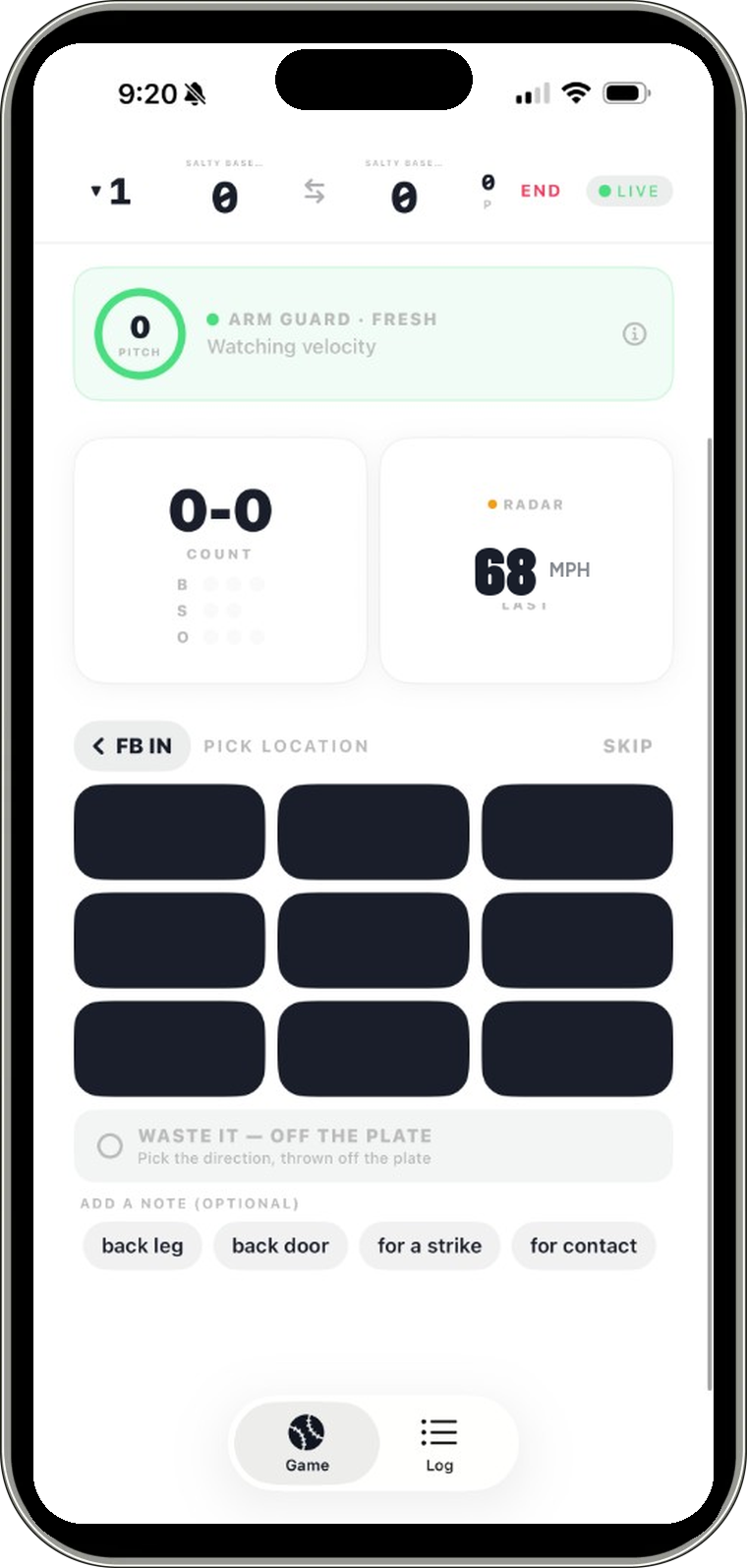
Seam sends real-time pitch calls from the dugout to the catcher's wrist, logs every outcome with full count context, and clocks live MPH from Pocket Radar Smart Coach — all in one game-day flow.

Software only: Seam does not include hardware devices.

Download for iOS

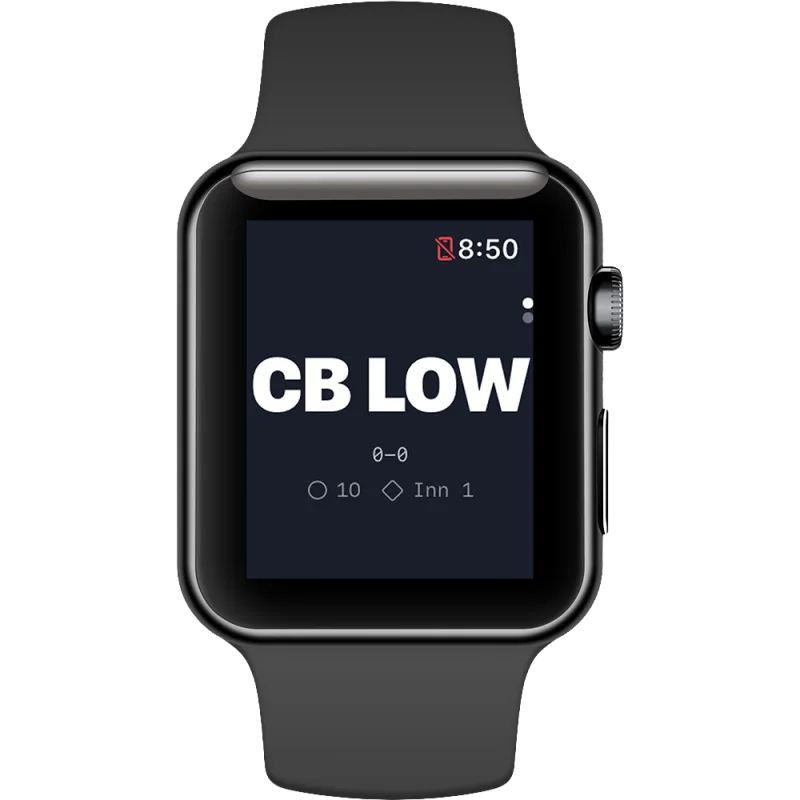
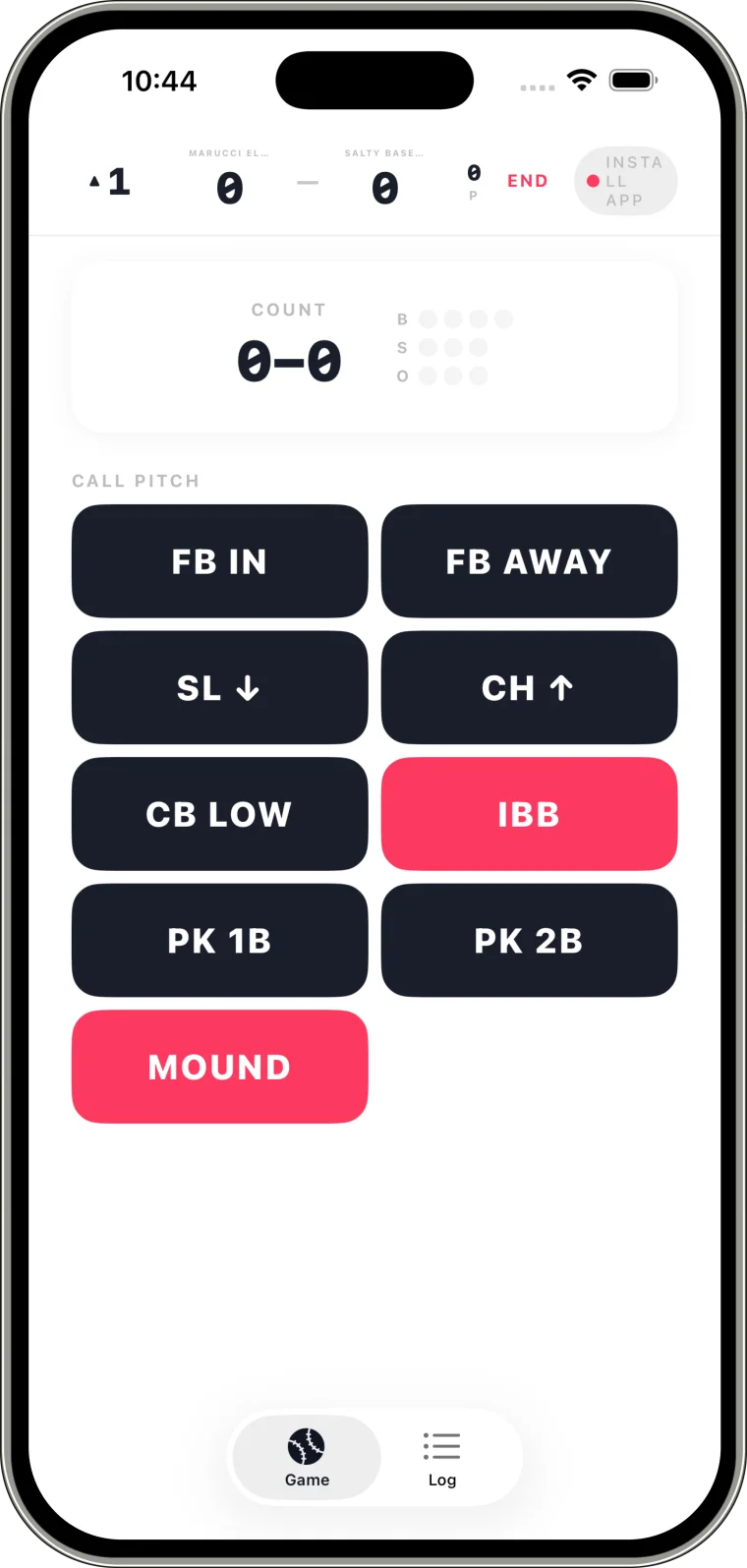
Call It — live pitch calls to Apple Watch

Log It — outcomes, count, and session history

Clock It — live MPH with Pocket Radar Smart Coach

Seam live pitch calling app screenshot

Built for Game Day

Call pitches, log every outcome, and clock live speed — built for coaches who need cleaner communication and smarter in-game decisions.

Call It — live pitch callingLog It — outcomes and analyticsClock It — Pocket Radar velocity

Old pitch communication breaks under pressure.

Hand signals get missed. Communication gets noisy. Timing slips. In close games, small delays turn into big mistakes.

Seam is the fix.

Seam gives coaches one workflow to call pitches with one tap, log outcomes with full context, and clock live MPH from Pocket Radar — sent straight to the catcher's watch. No guessing. No confusion. Just clean execution.

Call It. Log It. Clock It.

Everything you need to run the game

Call pitches to Apple Watch, log every outcome, and clock live speed — built for coaches who need speed, clarity, and reliable execution under pressure.

Call It — Real-Time Pitch Delivery

Call a pitch on iPhone and deliver it to Apple Watch in seconds with dependable in-game delivery.

One-Tap Calling Interface

Use a streamlined in-game grid designed for speed so calls happen fast in high-pressure moments.

Custom Pitch Playbook

Create, edit, reorder, and activate your own signals to match your staff and coaching style.

Complete At-Bat Context

Every call carries count, outs, and inning context so the whole battery stays aligned.

Log It — Outcome + Pitch Logging

Log strike, ball, foul, hit, out, and no-pitch outcomes to build a complete pitch timeline.

Clock It — Live Velocity

Pair Pocket Radar Smart Coach to stream live MPH onto the count card, saved with every pitch.

Dashboard Analytics

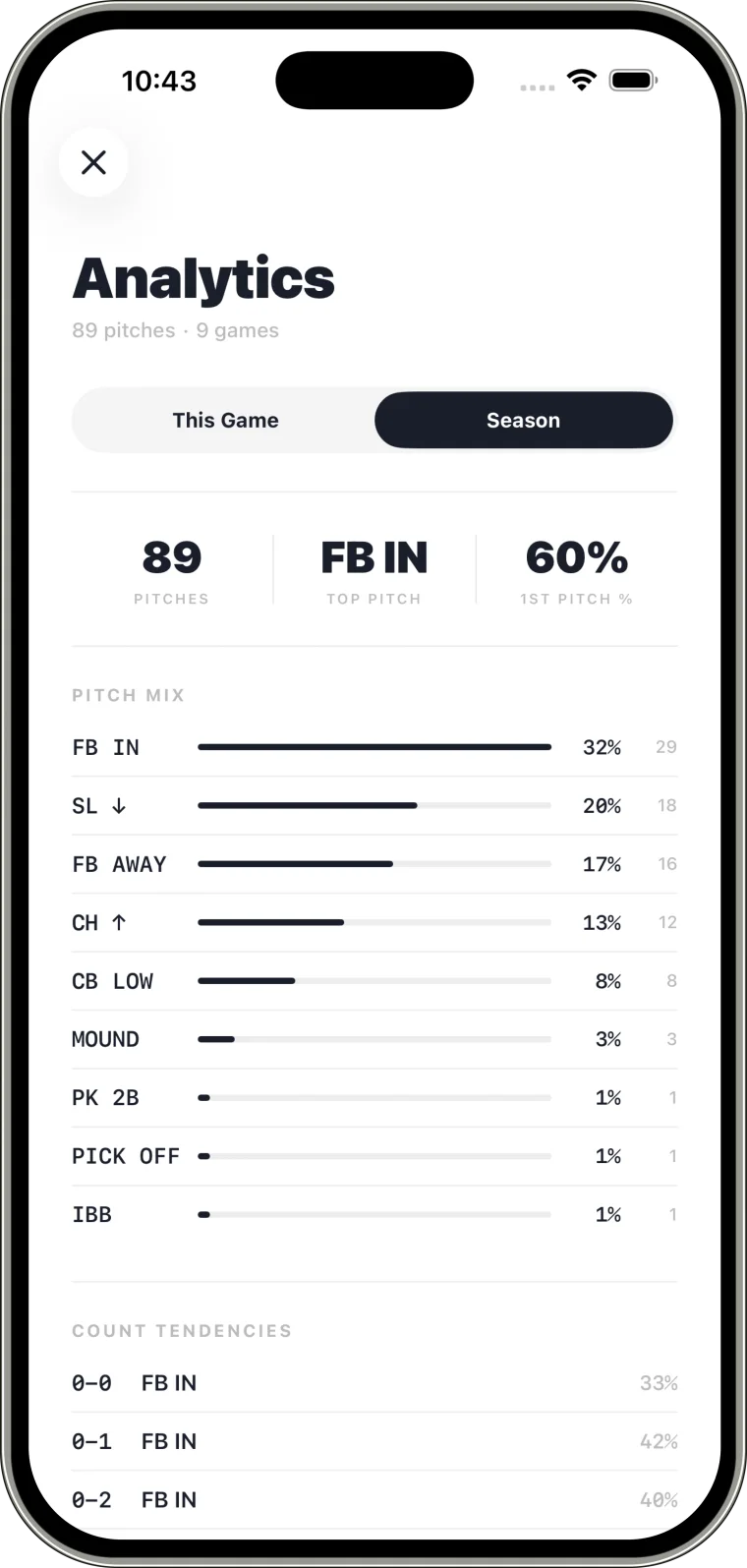
View pitch mix, strike rate, recent sessions, and trend activity to improve decisions over time.

Per-Game Deep Dive

Open any game to review score, pitch types, outcome breakdowns, and inning-by-inning usage.

Watch-First Experience

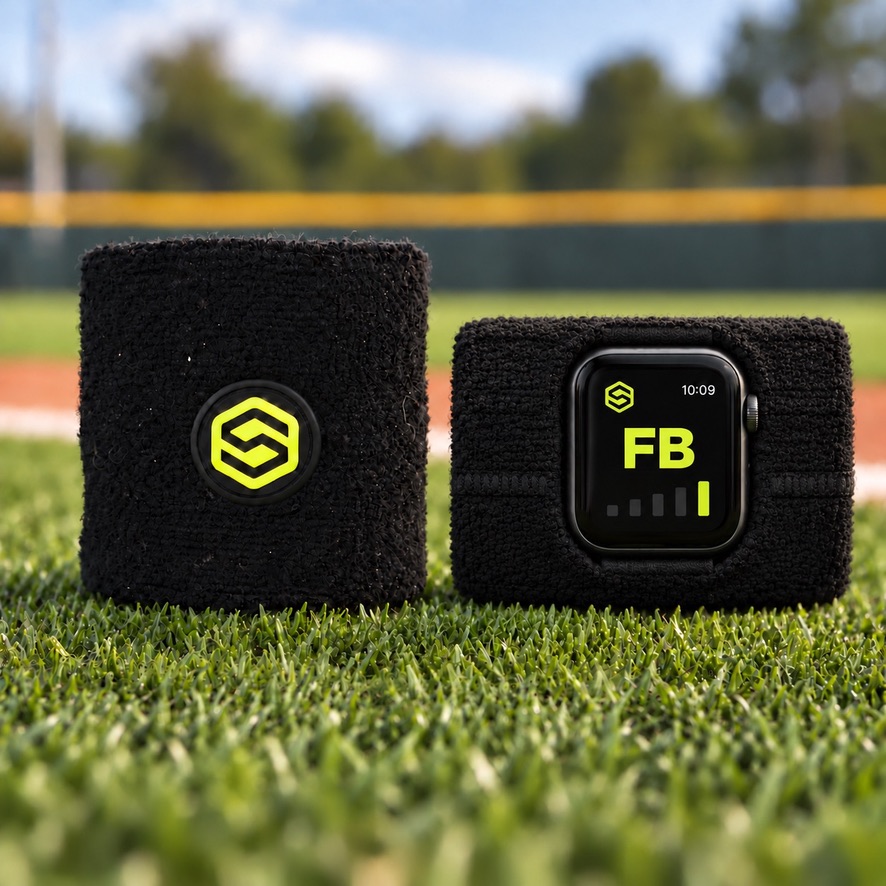
Catchers get a bold, readable signal view with quick access to recent pitch history.

More Team Distribution (Soon)

Multi-watch support is on the roadmap so one coach can push calls to multiple players.

From setup to first pitch in minutes

How Seam Works

Call pitches, log outcomes, and clock live speed. Seam keeps game flow fast and consistent.

01

Install + Pair

Install Seam on iPhone and Apple Watch, open both apps, and confirm connection status.

Install + Pair screenshot

02

Set Your Signals

Start with defaults or customize your own pitch set with labels, urgency, and no-pitch actions.

Set Your Signals screenshot

03

Start Game + Call Live

Create a game, enter teams, choose your side, then call every pitch in real time.

Start Game + Call Live screenshot
Apple Watch Seam mockup

04

Review and Improve

Use logs and dashboards after games to spot patterns and refine your pitch strategy.

Review and Improve screenshot

05

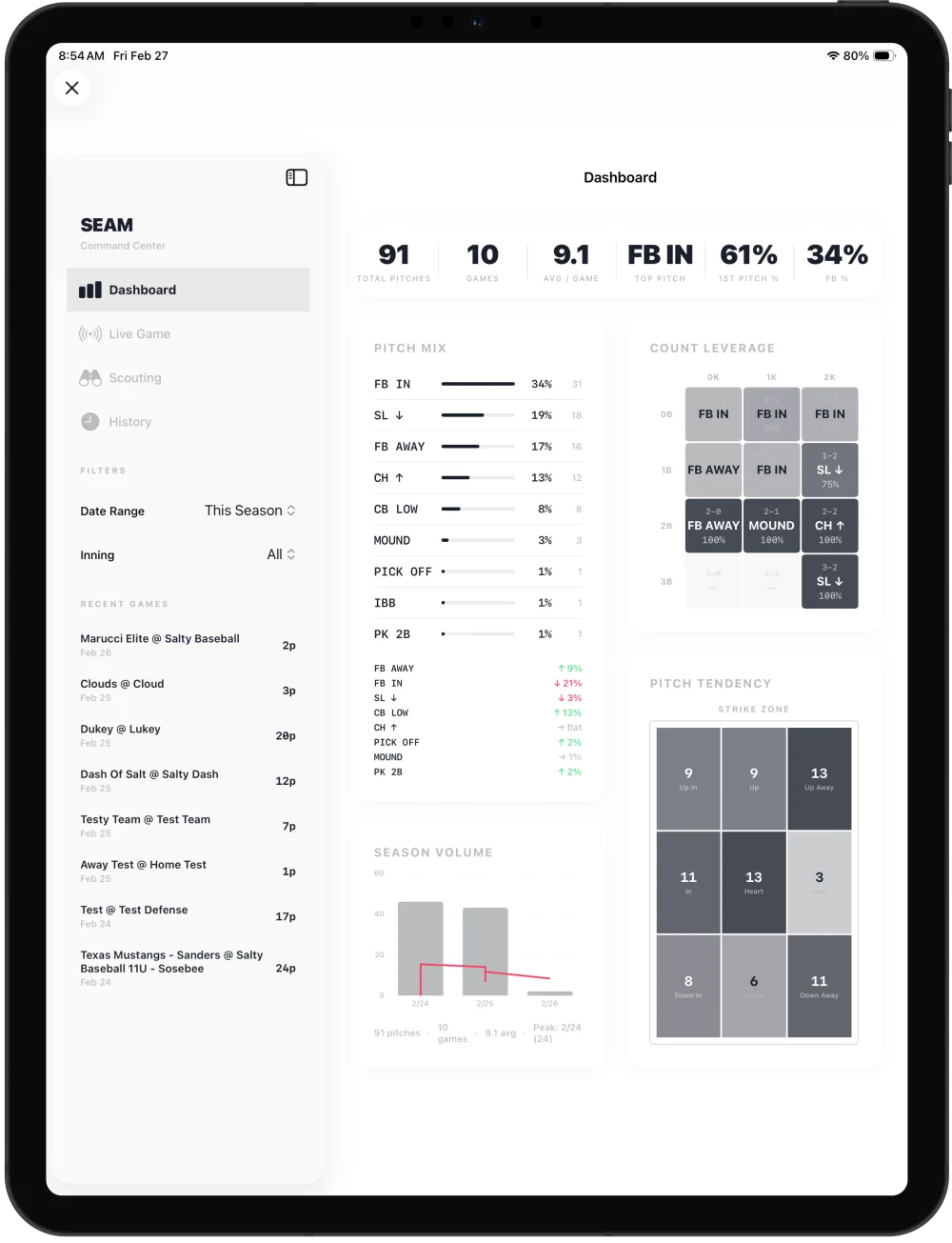
Advanced Analytics on iPad

Open Seam on iPad for deeper post-game analysis, larger charts, and easier trend review with your full staff.

Seam iPad analytics mockup

Get your team game-ready fast

Seam walks coaches through Call It, Log It, and Clock It before first pitch:

  • Call It — send live signals to Apple Watch
  • Log It — track outcomes and game context
  • Clock It — connect Pocket Radar for live MPH
  • Start your first game

If the green status is live, you're ready.

Setup Guide

Connecting Pocket Radar to Seam

This guide walks coaches through getting live pitch speed (MPH) from a Pocket Radar Smart Coach radar into Seam during a game. Follow the three parts in order.

How it works (the connection chain)

Speed travels through four links. All four must be healthy for a reading to reach Seam:

Smart Coach Radar

Measures speed

Pocket Radar Sports App

Bluetooth bridge, live session

Pocket Radar Cloud

Broadcasts to authorized partners

Seam

Shows MPH on the count card

Key point

The Pocket Radar Sports app is the bridge between the radar hardware and the cloud. It must be open and in an active live session for speeds to flow to Seam. If the Sports app is closed or not in a session, the radar has no path to publish speeds — Seam will show nothing, even if everything else is connected.

Seam receives speeds from the cloud, not directly from the radar. The Sports app and Seam can run on the same phone or two different devices — and Seam works on iPhone, Apple Watch, or iPad.

Prerequisites

Before you start, make sure you have:

  • A Pocket Radar Smart Coach radar (the model that supports Pocket Radar Connect).
  • A Pocket Radar PLUS subscription (paid). Pocket Radar Connect — the feature that shares speeds with partner apps like Seam — requires PLUS. A free Pocket Radar account cannot authorize Seam.
  • The Pocket Radar Sports app installed and signed in with the email you want to use.
  • The Seam app installed.
  • The same email address available to use in both apps. The link between Pocket Radar and Seam is made by email — they must match exactly.

Part 1 — Pocket Radar Sports App

Confirm your Pocket Radar account is set up correctly and authorize Seam.

1.1 — Confirm the correct email

  1. Open the Pocket Radar Sports app.
  2. Go to your Account / Profile.
  3. Confirm you're signed in with the email you intend to use in Seam. Write it down exactly — you'll enter the identical address in Seam.

1.2 — Confirm a paid PLUS account

  1. In the Pocket Radar Sports app, open your subscription / membership settings.
  2. Confirm your plan shows PLUS and is active (paid, not expired).
  3. If you don't have PLUS, upgrade before continuing — Connect won't appear without it.

1.3 — Authorize Seam

  1. In the Pocket Radar Sports app, open Pocket Radar Connect.
  2. Find Seam in the list of partner apps.
  3. Tap Connect to authorize Seam to receive your radar's speeds.
  4. You should see Seam listed as connected/authorized.

Authorizing Seam is a one-time action per account. You only need to redo it if you disconnect Seam or switch Pocket Radar accounts.

Part 2 — Connect Pocket Radar in Seam

Now link the same account inside Seam.

  1. Open the Seam app.
  2. Go to Settings (gear icon) → Pocket Radar.
  3. Enter the exact same email you use in the Pocket Radar Sports app.
  4. Tap Connect.
  5. Seam confirms the link and shows your account. You'll see a readiness checklist:
  • Authorized on Pocket Radar — your account is authorized.
  • Linked to Seam — Seam has resolved and stored your account.
  • Receiving live speed — confirmed once a real reading arrives (see Part 3).

If Seam can't find your account: it means the authorization from Part 1.3 hasn't reached Seam yet. Re-open Pocket Radar Connect, make sure Seam shows as connected, then try again in Seam. Allow a few seconds between authorizing and connecting.

Part 3 — Test the connection

Confirm a real speed reaches your device before game day.

  1. In the Pocket Radar Sports app, start a live session (the mode where it reads and announces speeds).
  2. In Seam → Settings → Pocket Radar, tap Test Connection.
  3. Within the listening window, trigger a real reading — throw a pitch past the Smart Coach Radar (or wave a hand/ball through its beam).
  4. When a speed arrives, Seam shows "Working — received XX MPH from your radar."

If the test times out with "No speed received":

  • Make sure the Pocket Radar Sports app is in an active live session and is actually reading speeds (you'll hear it announce them).
  • Make sure a reading actually happened during the test window.
  • Re-run the test.

Using it in a game

Once the checklist is all green, there's nothing else to do:

  1. Keep the Pocket Radar Sports app open and in a live session during the game.
  2. Start a game in Seam (Solo or Team mode — both fully support radar).
  3. Each pitch's MPH appears automatically on the count/velocity card and is saved with the pitch in your stats.

A live status dot on the velocity card shows the connection state:

  • Green (pulsing)Receiving live speeds.
  • AmberConnected and waiting for the next reading.
  • RedConnection problem (see Troubleshooting).

Troubleshooting / FAQ

Everything is connected, but no speed shows in the game.
Confirm the Pocket Radar Sports app is open and in an active live session. This is the #1 cause — the Sports app is the bridge; if it's closed, no speeds flow. You should hear it announcing speeds out loud.
Seam says "No Pocket Radar connection found for that email."
The authorization hasn't reached Seam. In the Pocket Radar Sports app, open Pocket Radar Connect and confirm Seam is connected. If it already shows connected, disconnect and reconnect it, then try linking in Seam again.
Do I need PLUS?
Yes. Pocket Radar Connect (partner sharing) requires a paid PLUS subscription. A free account can't authorize Seam.
Do the two apps have to be on the same phone?
No. Seam receives speeds from the Pocket Radar cloud, so the Sports app can be on one device and Seam on another (iPhone, Apple Watch, or iPad).
The emails don't match — does that matter?
Yes. The link is made by email. The address in Seam must exactly match the one signed in to the Pocket Radar Sports app.
I switched Pocket Radar accounts / reinstalled.
Re-authorize Seam in Pocket Radar Connect (Part 1.3), then reconnect in Seam by email (Part 2).
Speeds stopped mid-game.
Usually the Sports app left its live session or the phone locked/slept. Re-open the Sports app and resume the live session. Seam re-establishes the stream automatically.
Can I connect by something other than email?
Yes — Seam → Settings → Pocket Radar → Advanced → Link by ID lets you link by Pocket Radar User ID directly, mainly for testing or if email lookup fails.

Quick checklist

  • Pocket Radar Sports app signed in with the correct email
  • Pocket Radar PLUS subscription active (paid)
  • Seam authorized in Pocket Radar Connect
  • Same email connected in Seam → Settings → Pocket Radar
  • Readiness checklist all green
  • Test Connection passed with a real reading
  • Pocket Radar Sports app kept open and in a live session during games

Why teams choose Seam

Call It — Faster Communication

Send live pitch calls to Apple Watch without delay so your battery stays on pace.

Cleaner Execution

Reduce missed signs and confusion between dugout and plate.

Better Game Awareness

Keep count, outs, and inning context attached to every pitch call.

Log It — Smarter Post-Game Decisions

Review outcomes, usage, and tendencies to improve next game plans.

Clock It — Live Speed Context

Stream MPH from Pocket Radar Smart Coach onto every pitch for real velocity reads.

Choose your game plan

Starter

Free

Trying Seam with your core workflow

  • - Call It — pitch calling
  • - Log It — game history
  • - Apple Watch sync
Start Free

Most Popular

Pro

$19.99/year

Active coaches running full season workflows

  • - Everything in Call It + Log It
  • - Clock It — Pocket Radar velocity
  • - Full analytics dashboard
  • - Advanced signal customization
  • - Priority feature access
Go Pro

Team

$49.99/year

Staffs sending calls to multiple player watches

  • - Everything in Pro
  • - Team-level setup controls
  • - Team Mode multi-watch distribution
  • - Priority support
Go Team

Cancel anytime. No contracts. Season-ready in minutes.

Early Access

Join the Seam Waitlist

Get early access to Seam updates, beta features, and release notifications for your program.

Seam Hardware Package

Seam Hardware Package

Contact us to learn more about the Seam hardware package.

Seam hard case mockup placeholder

Frequently Asked Questions

No. Catchers receive calls directly on Apple Watch.

Call It. Log It. Clock It.

Join coaches using Seam to call cleaner games, log every pitch, and clock live speed behind the plate.

Minimum iOS Requirements

iPhone (iOS)

iOS 17.0 or later

Required to run the Seam coach app and manage all pitch calling.

Apple Watch (watchOS)

watchOS 10.0 or later

Apple Watch (1st generation) and Series 1–3 are not supported (they cannot run the required watchOS version).

Series 4, Series 5, and Apple Watch SE (1st generation, 2020) support Solo and Pro modes; Team Mode is not recommended due to limited Bluetooth throughput.

Apple Watch Series 6 and later, Apple Watch SE (2nd generation), Apple Watch Ultra and Ultra 2, and Apple Watch Series 9–10 are fully supported for Solo, Pro, and Team modes.

Talk to Us

Book a Seam Discovery Call

Use the Calendly badge at the bottom-right of the page, or click below to open scheduling directly.